CANExplorer: Monitor, Analyse and Diagnose a CAN Bus Without Leaving One App
A cross-platform desktop tool for CAN, CAN FD and LIN buses: live monitoring, recording and replay, signal databases, reverse engineering, UDS/J1939/CANopen diagnostics, ECU flashing, simulation and scriptable test automation — with any python-can adapter, or no hardware at all.
If you have ever worked on a vehicle bus, you know the drill: one tool to watch the traffic, another to decode it against a DBC, a vendor utility for diagnostics, a separate flasher for the ECU, and a pile of Python scripts to glue the rest together. Each one speaks a slightly different dialect, and none of them talks to the others.
CANExplorer is my attempt to put all of that in one place. It is a cross-platform desktop application for CAN, CAN FD and LIN buses — monitor, analyse, record, reverse engineer, diagnose, flash, simulate and test — on Linux, Windows and macOS, with any adapter python-can supports. And because it ships a full virtual bus and a set of example ECUs, you can try every feature right now without owning a single piece of hardware.
This post is a tour of what it does and how to use it.
Everything below works on a software-only VirtualBus, so you can follow along without an adapter. Where a step needs real hardware, I say so.
Installing it
The fastest path is a prebuilt installer from the releases page: a setup.exe for Windows, an AppImage or .deb for Linux, and a .dmg for macOS (Apple silicon). No Python required. Portable zip archives are attached too.
On Linux it is also a snap:
1
2
3
sudo snap install canexplorer
sudo snap connect canexplorer:can-bus   # SocketCAN interfaces
sudo snap connect canexplorer:raw-usb   # USB adapters
Or run it from source with uv and Python 3.10+:
1
2
3
4
git clone https://github.com/AKJ7/CANExplorer.git
cd CANExplorer
uv sync
uv run canexplorer
On Linux, uv run canexplorer --install-desktop-entry adds it to your application menu with its icon.
Thirty seconds to a live bus, no hardware
When the app opens, create a new connection and pick VirtualBus as the interface — a software bus that lives inside the application. Load the example database examples/simulation/vehicle.dbc, then open the Simulation view and run examples/simulation/engine_simulation.py. You now have a decoded, running bus to explore.
That is the whole point of the virtual interface: you get a realistic signal to look at before you have ever plugged anything in. When you are ready for real traffic, the connection dialog lists every python-can interface — SocketCAN, PEAK PCAN, Vector, Kvaser, IXXAT, gs_usb/candleLight, slcan, J2534, ELM327 and more — with CAN FD support and a separate data bitrate where the adapter allows it.
Watching and understanding the traffic
The Dashboard is the at-a-glance view: frame rates, bus load, error frames, a live activity graph and the busiest identifiers. It is the first thing I look at to answer “is the bus alive and healthy?”
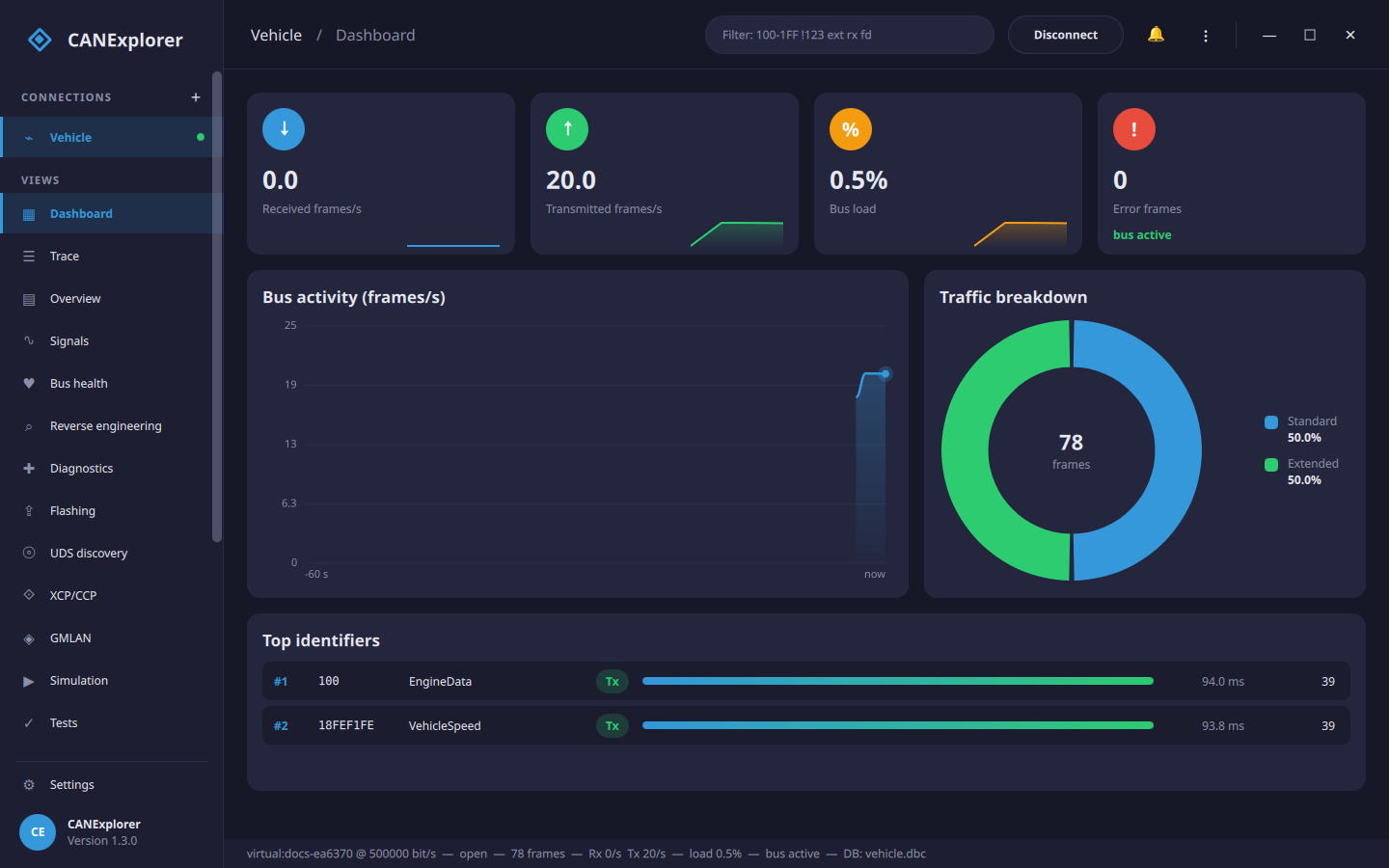 The dashboard: frame rates, bus load, error frames and the busiest identifiers.
The Trace is where you spend real time. It has both a scrolling log and a per-identifier overview with cycle times and changed bytes highlighted, so a payload that flips a single bit jumps out immediately. Columns are sortable, and the display filter is a small language of its own:
1
100-1FF !123 ext rx fd
That reads: identifiers 0x100–0x1FF, excluding 0x123, extended frames only, received (not transmitted), CAN FD. You can also search by text, by a data pattern, or by a decoded signal condition, and drop bookmarks on interesting frames. Sessions can run to millions of frames — older ones are paged to disk so the UI stays responsive.
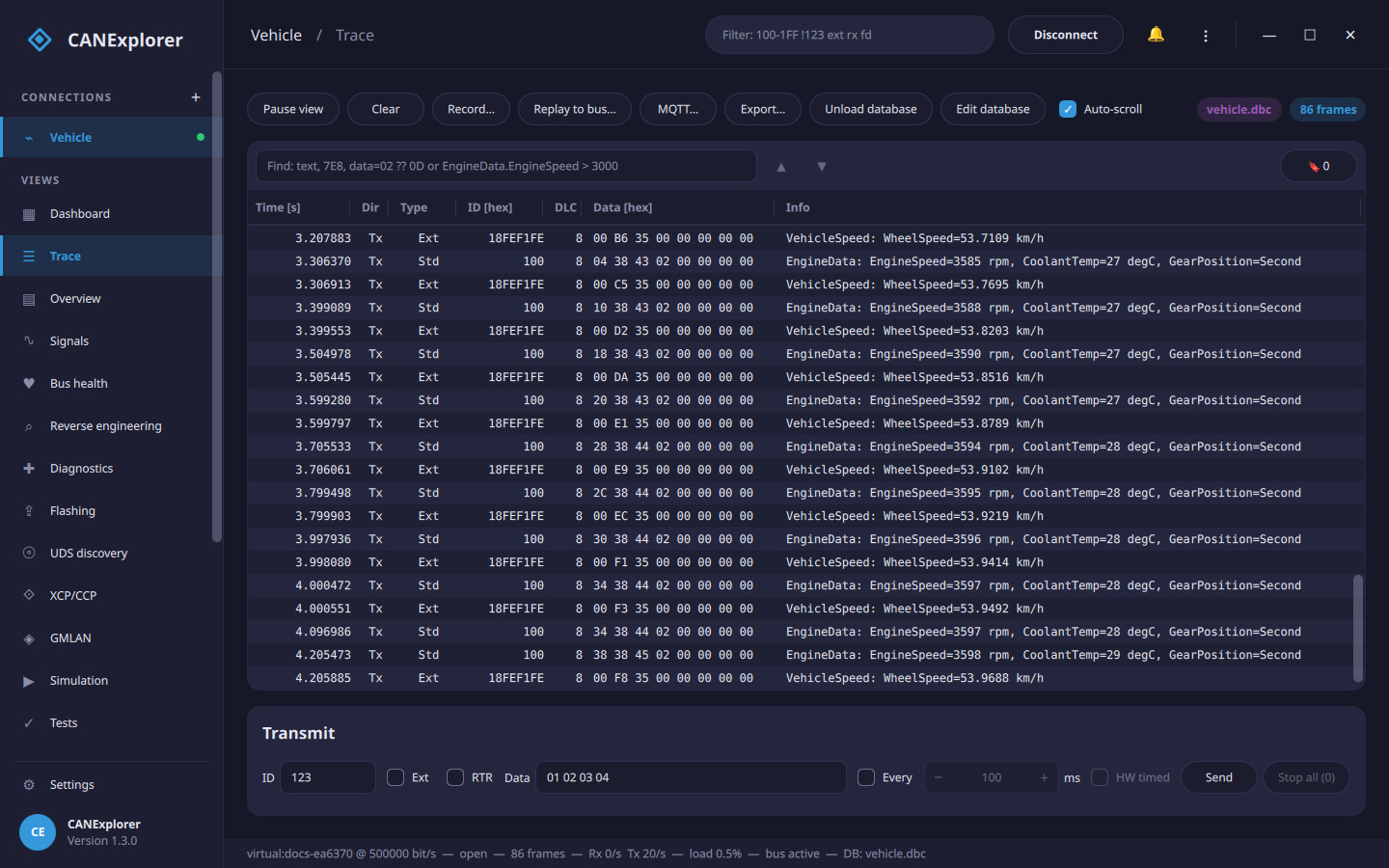 The trace and per-identifier overview, with changed bytes highlighted and a display filter applied.
For anything time-based, the Signal plots let you zoom and pan across the entire buffer, drop two cursors to read values and statistics, overlay several signals on one chart, and export to CSV. The Bus health view keeps an error-state timeline, TEC/REC counters and bus load over the last hour — invaluable when you are chasing an intermittent fault.
Databases: decode, edit, convert
A raw bus is just bytes until you have a database. CANExplorer reads the formats you actually meet in the wild: Vector DBC, BUSMASTER DBF, AUTOSAR ARXML (including container PDUs), Kayak KCD, PCAN SYM and LIN LDF.
It does not just read them — it has a full database editor for CAN and LIN, with frames, signals, nodes, encodings and LIN schedule tables, a visual bit-layout view, consistency checks, and multiplexer editing. Because it understands all those formats, it also converts between them, both in the editor and from the command line:
1
2
uv run can-db-convert vehicle.dbc vehicle.dbf                 # DBC → DBF
uv run can-db-convert system.arxml powertrain.dbc --bus Powertrain
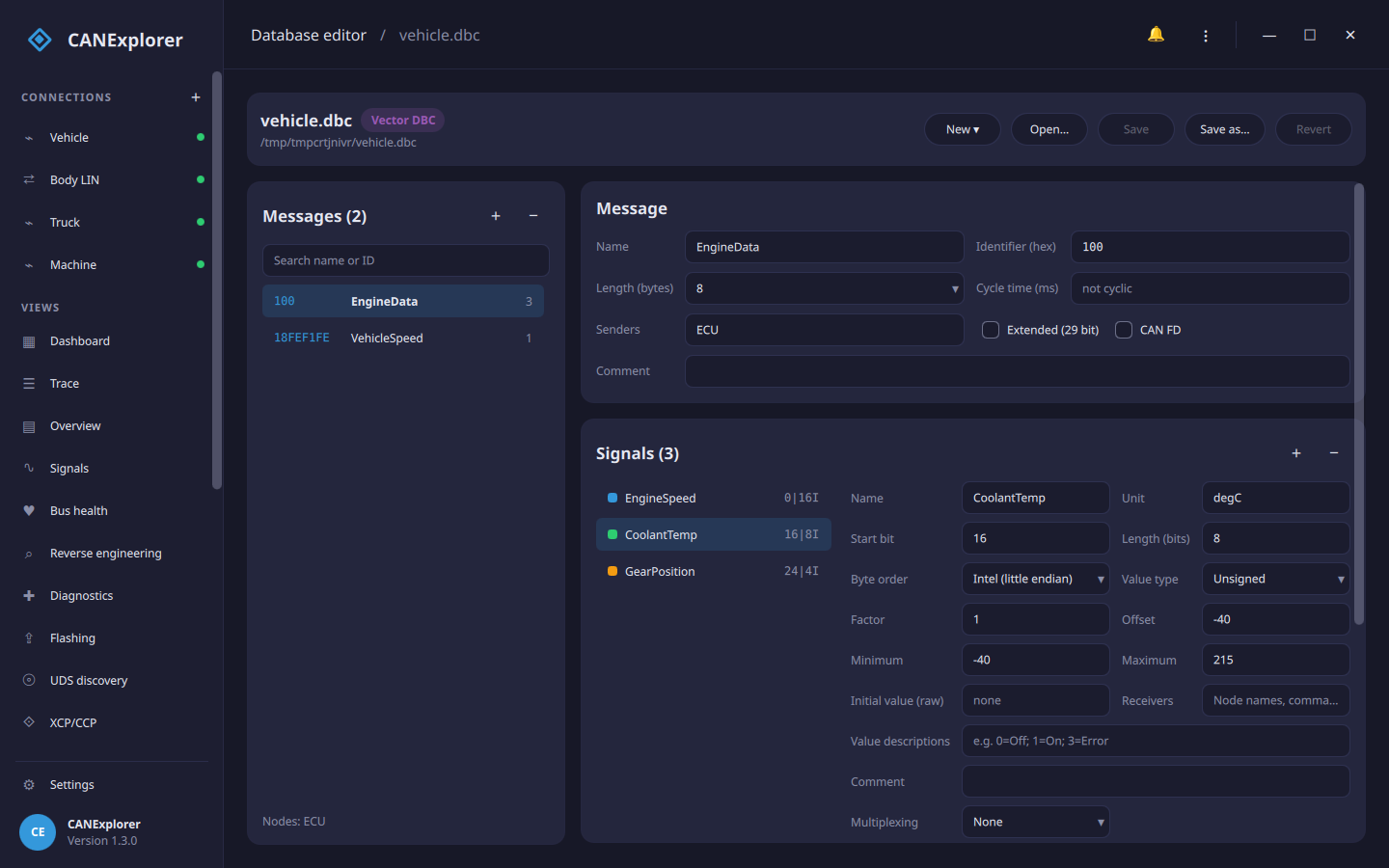 The database editor with the bit-layout view.
Reverse engineering an unknown bus
This is my favourite part, and the reason the project exists. Point CANExplorer at a bus you have no database for, and it goes to work on the statistics: bit and byte activity per identifier, and automatic detection of checksums, counters, multiplexers and value fields. You mark a “notch” (a known event — you pressed the brake, you turned the wheel) and it highlights which bits reacted.
From there you can:
- match found fields against database signals, CSV/GPS logs, or live OBD-II values you poll,
- group fields that carry the same signal across several messages,
- plot a bit field directly, with no database at all, and
- promote what you have found straight into a DBC in the database editor.
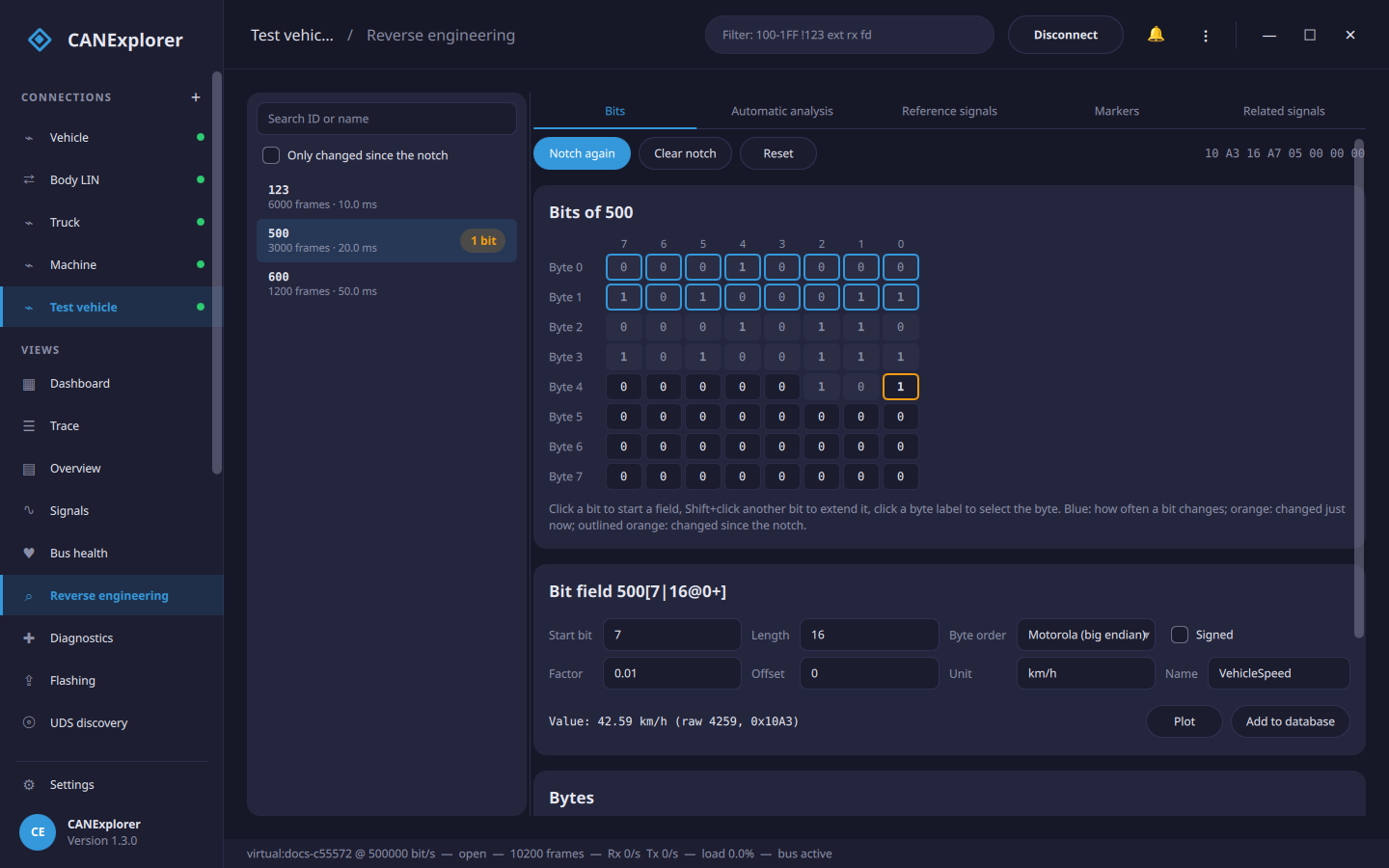 Bit and byte statistics with automatically detected fields.
Recording and replay
CANExplorer records to the formats people actually exchange: ASC, BLF, CSV, candump LOG, PEAK TRC, SQLite, ASAM MF4 and gzip-compressed text. Recordings can be split into numbered files by size or time, and triggered recording captures only what matters — give it a condition like EngineData.EngineSpeed > 6000 and it keeps the window of traffic before and after the event.
Replay runs from 0.25× to 10× (or as fast as possible), with pause and seek, and can play a recording back onto a real bus — filtered and repeated — which is a cheap way to reproduce a bug on the bench. You can lay several buses on one timeline and simulate gateways forwarding frames between them, and the compare view diffs two recordings: identifiers present in only one, changed cycle times and payloads, and signal values aligned by time, by a trigger identifier, or by frame sequence.
Diagnostics and higher-level protocols
Beyond raw frames, CANExplorer speaks the protocol stacks that sit on top of CAN:
- UDS over ISO-TP and the LIN transport layer — sessions, resets, data identifiers, DTCs, routines, and security access with your own seed/key algorithm. It reads CANdelaStudio CDD and ASAM ODX/PDX descriptions for named, decoded identifiers.
- ECU flashing over UDS (
RequestDownload/TransferData) from Intel HEX, S-record or binary files, with a progress bar. - DoIP (Diagnostics over IP, ISO 13400-2) — discover entities, connect with routing activation (optionally over TLS) and run diagnostics or flashing over Ethernet.
- UDS discovery and fuzzing — scan an ECU for the services, identifiers, subfunctions and routines it exposes, and fuzz it with mutated requests while watching for hangs and crashes.
- J1939 — nodes and their address claims, DM1/DM2 trouble codes and lamps, requests, and sending parameter groups by name with BAM or RTS/CTS.
- CANopen master (NMT, SDO, live PDOs, EMCY) and CANopen over EtherCAT (CoE).
- GMLAN (GMW3110) diagnostics for GM/Opel vehicles, including single-wire CAN (SWCAN, 33.3 kbit/s).
- XCP/CCP measurement and calibration, by address or by name from an A2L file.
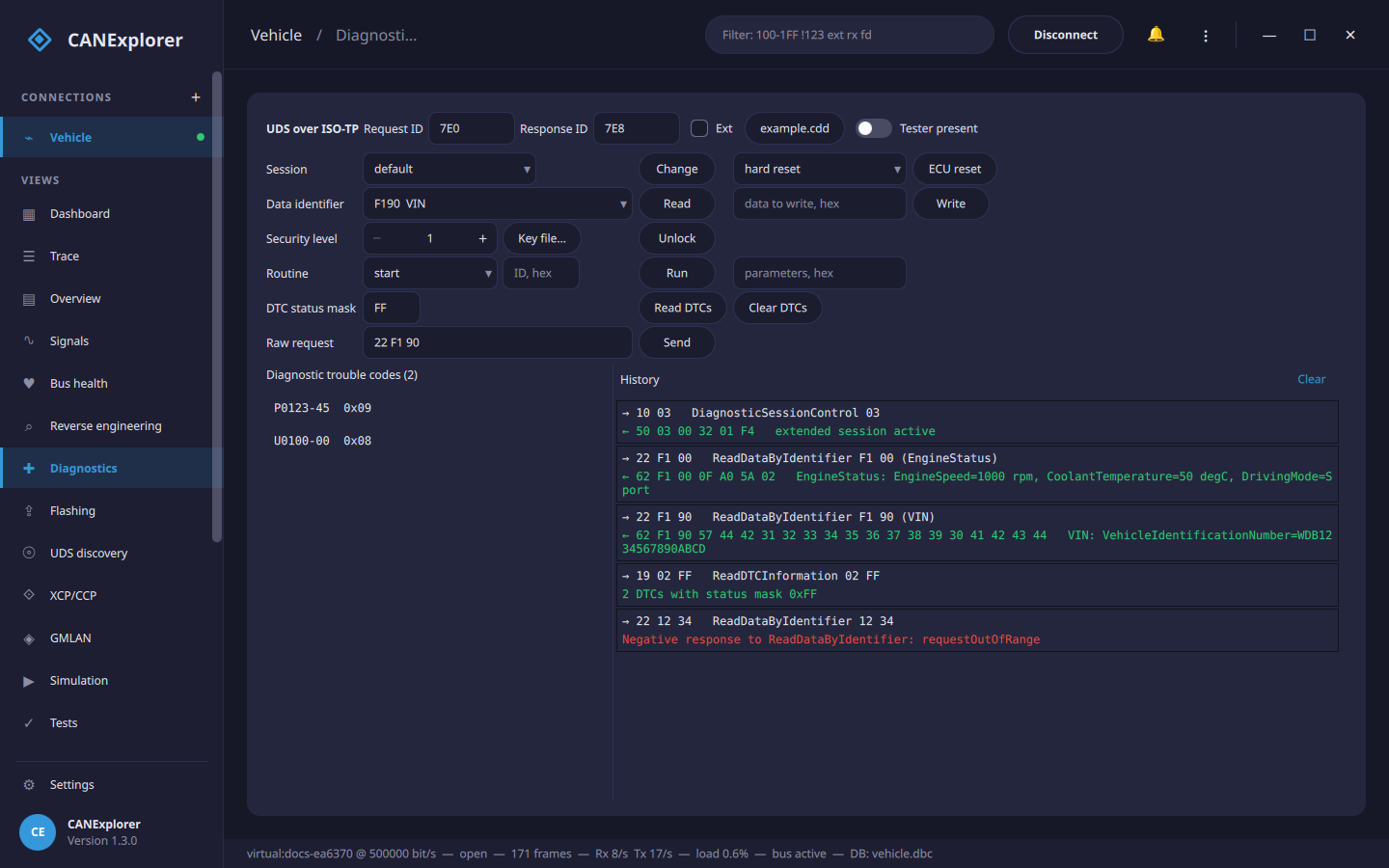 UDS diagnostics over ISO-TP against a simulated ECU.
Every one of these ships a simulated ECU or entity, so you can learn the workflow and test your scripts without a vehicle on the bench.
Simulation and scriptable test automation
You can write simulated ECUs in Python and drive them from QML panels — handy for rest-bus simulation or for standing in for a node that is not on your desk yet.
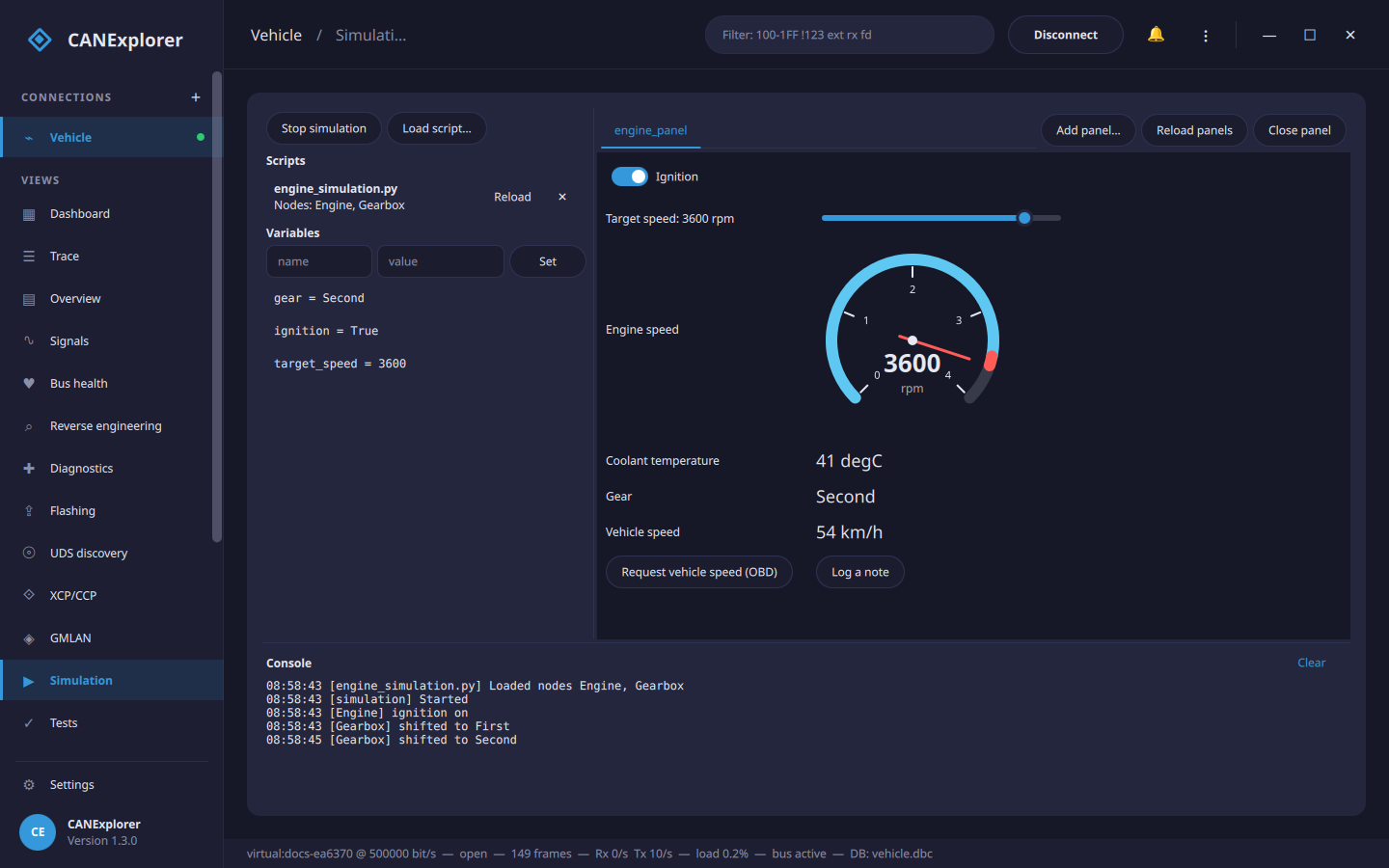 A simulated ECU driven from a QML control panel.
For CI and regression testing, ECU test scripts run checks, timing measurements and UDS requests, and produce pass/fail verdicts — in the Tests view, or headless with can-test, with HTML, JUnit and Markdown reports. Here is the example suite running against the example engine simulation on a virtual bus:
1
2
3
4
uv run can-test examples/testing/vehicle_tests.py \
    --database examples/simulation/vehicle.dbc \
    --simulation examples/simulation/engine_simulation.py \
    --report report.html
That one command spins up a virtual bus, starts the simulated engine, runs the tests and writes a report — no hardware, fully reproducible, drop-in for a pipeline.
The command line
Three entry points cover the scriptable work:
| Command | Purpose |
|---|---|
canexplorer | The application itself |
can-test SCRIPT … | Run ECU test scripts on a bus; exit code and HTML/JUnit reports for CI |
can-db-convert IN OUT | Convert signal databases between formats |
A few things that make daily use pleasant
Connections, databases, filters, plots and scripts all save into a single workspace file, so you reopen a project exactly as you left it. There is a command palette (Ctrl+K) for jumping anywhere, six colour themes, and the interface is translated into English, German, French, Chinese and Japanese. You can also share a remote bus — run can-server on a Raspberry Pi in the vehicle and connect to it over the network — or publish decoded signals to MQTT for a dashboard or home automation.
Try it
The best way to understand a tool like this is to open it. Grab an installer, or clone and uv run canexplorer, connect to a VirtualBus, and run the example simulation. The quick start walks through it step by step, and the documentation has a page for every feature above.
It is MIT-licensed and on GitHub — issues, ideas and pull requests are all welcome.