Quick start
This walk-through uses a virtual bus and the simulation in examples/simulation, so it needs no hardware.
1. Create a connection
Start CANExplorer (uv run canexplorer, or the executable of a bundle).
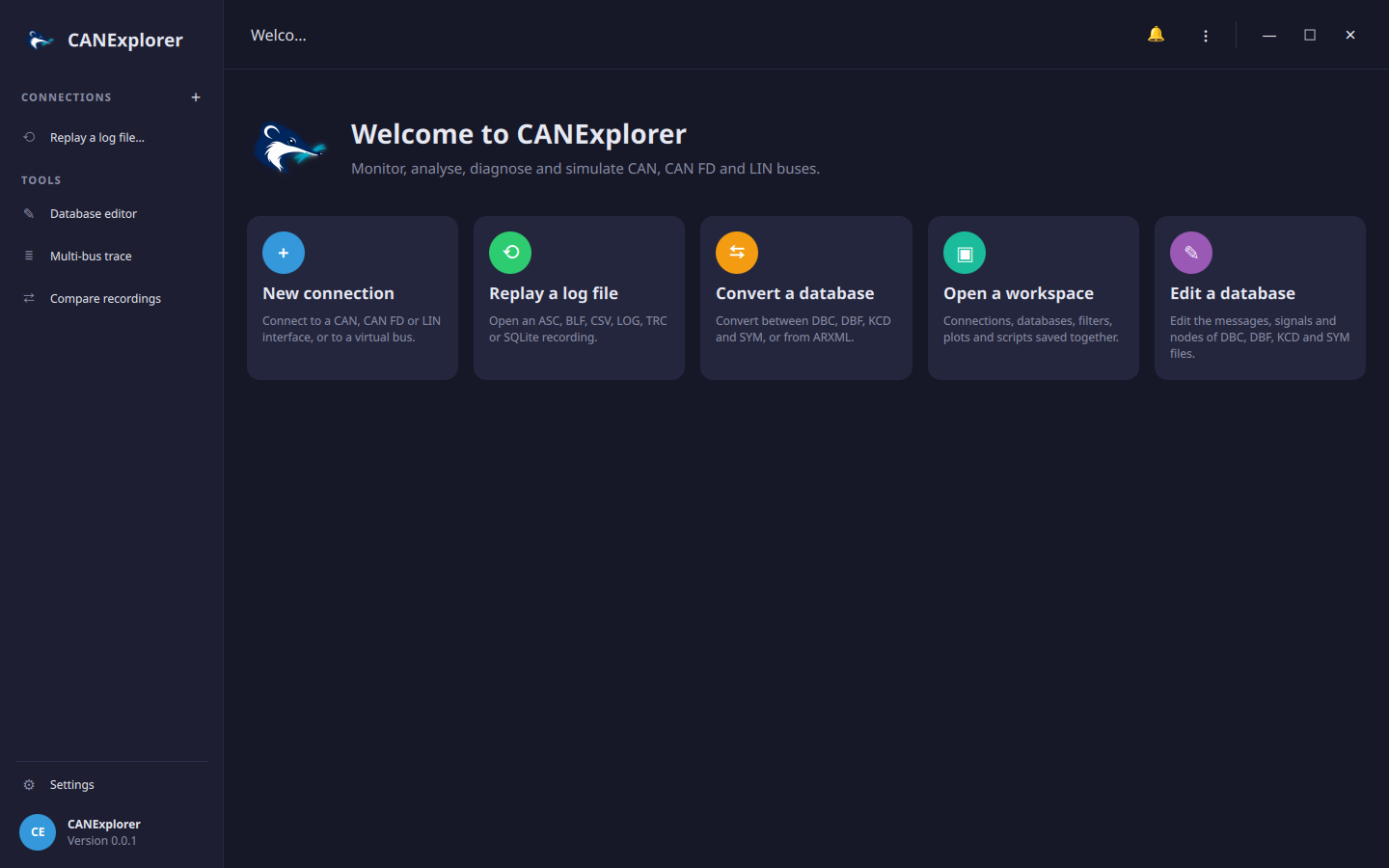
Choose New Connection… (Ctrl+N).
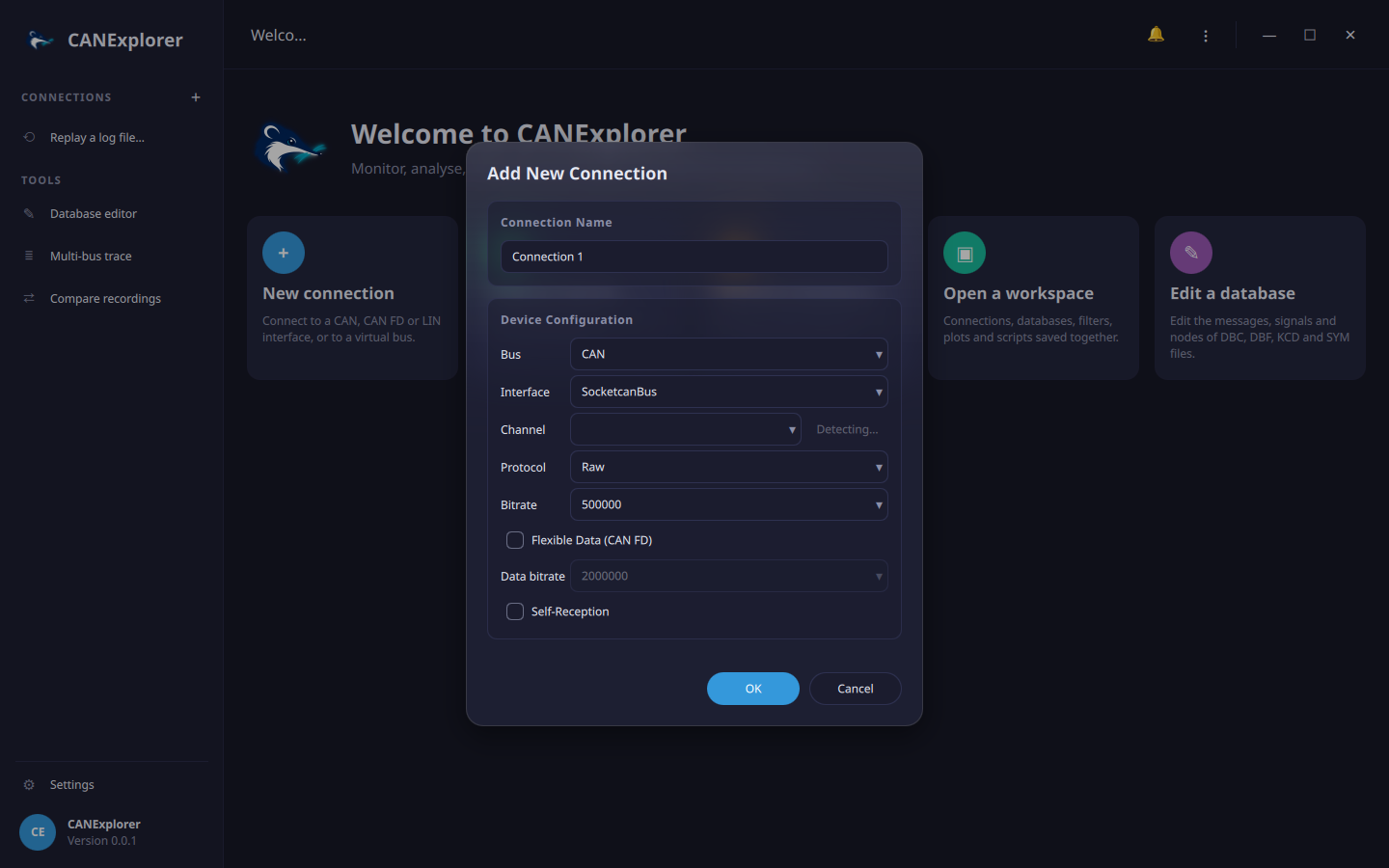
- Bus: CAN
- Interface: VirtualBus
- Channel: type any name, e.g.
demo - Protocol: Raw
Confirm with OK and press Connect in the top bar. The new connection appears in the sidebar and opens on its Dashboard.
2. Load the signal database
Press Load database… and choose examples/simulation/vehicle.dbc. Frames with identifiers defined in the
database are now decoded in the Info column.
3. Start the simulated engine
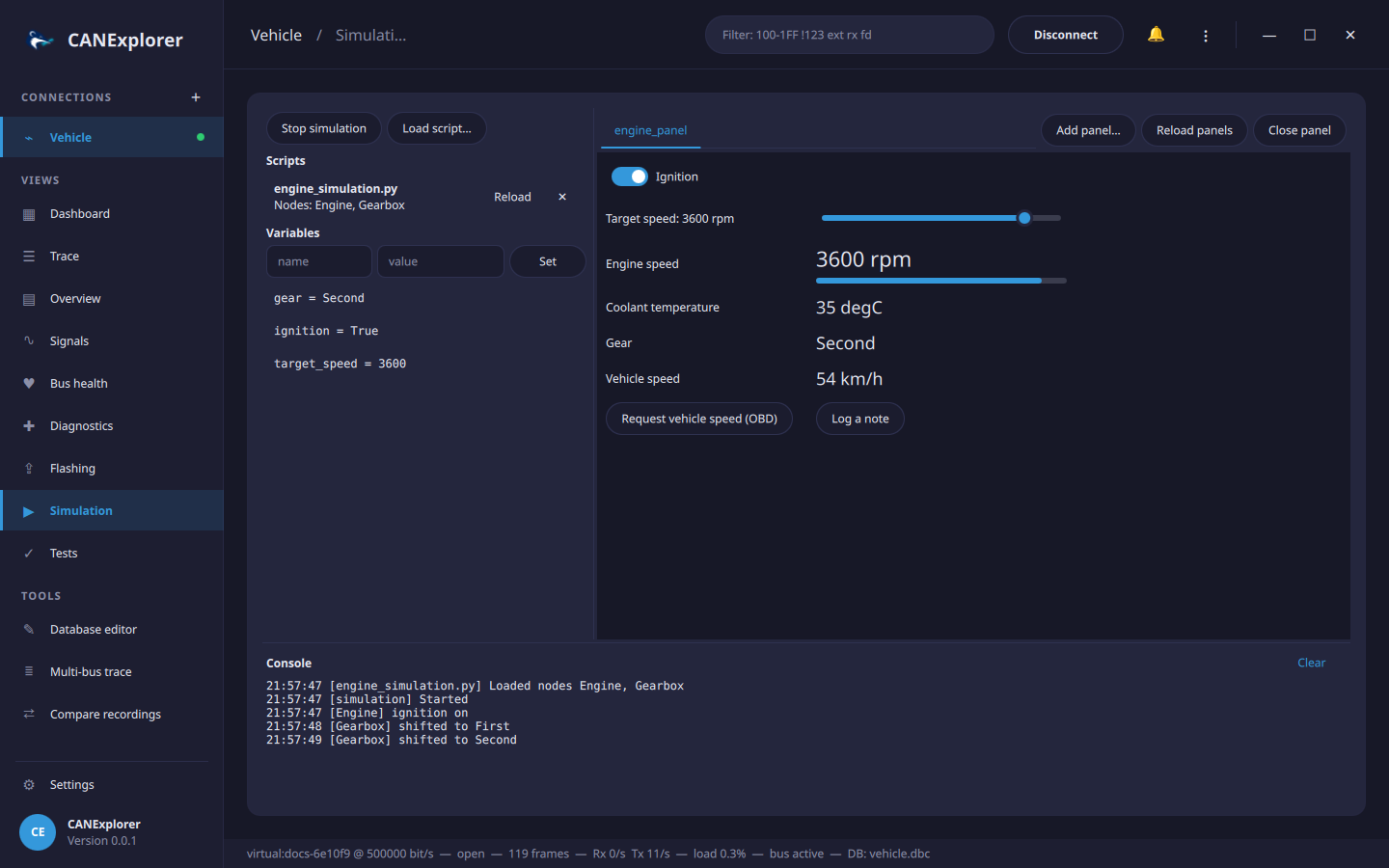
Open the Simulation view in the sidebar:
- Load script…
examples/simulation/engine_simulation.py: it defines the nodes Engine and Gearbox. - Add panel…
examples/simulation/engine_panel.qml. - Start simulation.
Switch on the Ignition in the panel and move the Target speed slider. The engine speeds up, the gearbox shifts and both nodes send their messages.
4. Look at the traffic
- Trace lists every frame with its decoded signals.
- Overview shows one row per identifier with count, cycle time and the bytes that changed.
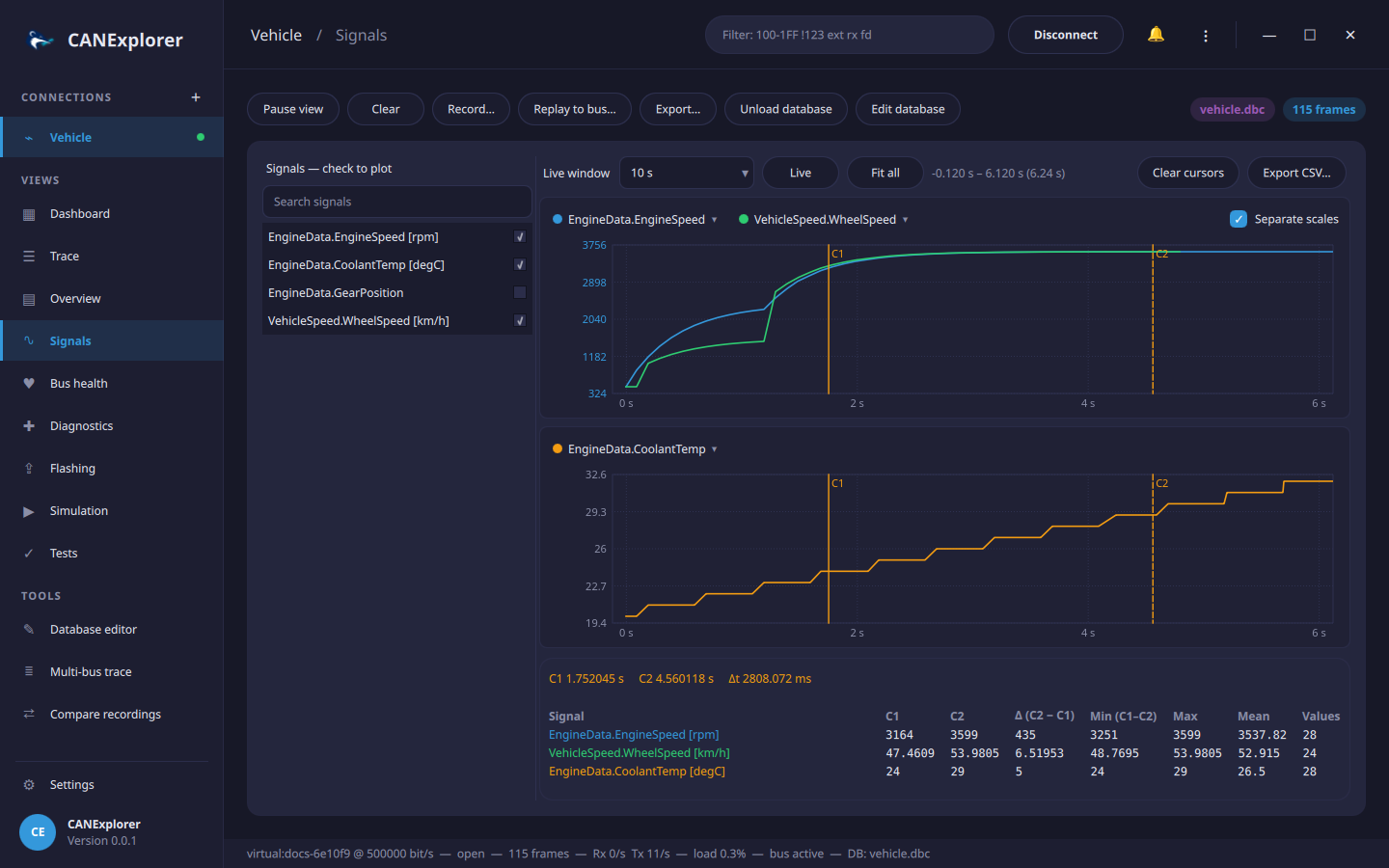
- Signals: tick
EngineData.EngineSpeedandVehicleSpeed.WheelSpeedto plot them.
5. Record and replay
Press Record…, choose a file such as demo.blf, let it record for a while and press Stop recording.
⋮ → Replay Log File… (Ctrl+O) opens the recording as a new connection and plays it back with its original
timing; the playback bar pauses it and changes its speed. Replay to bus… on the Demo connection sends the
recording on the bus again.
Next steps
- Connect to a real bus: see Installation and Connections.
- Write your own nodes and panels: Simulation and scripting.
- Diagnose an ECU: Diagnostics.