Connections
Creating a connection
+ next to Connections in the sidebar, ⋮ → New Connection… or Ctrl+N opens the connection dialog.
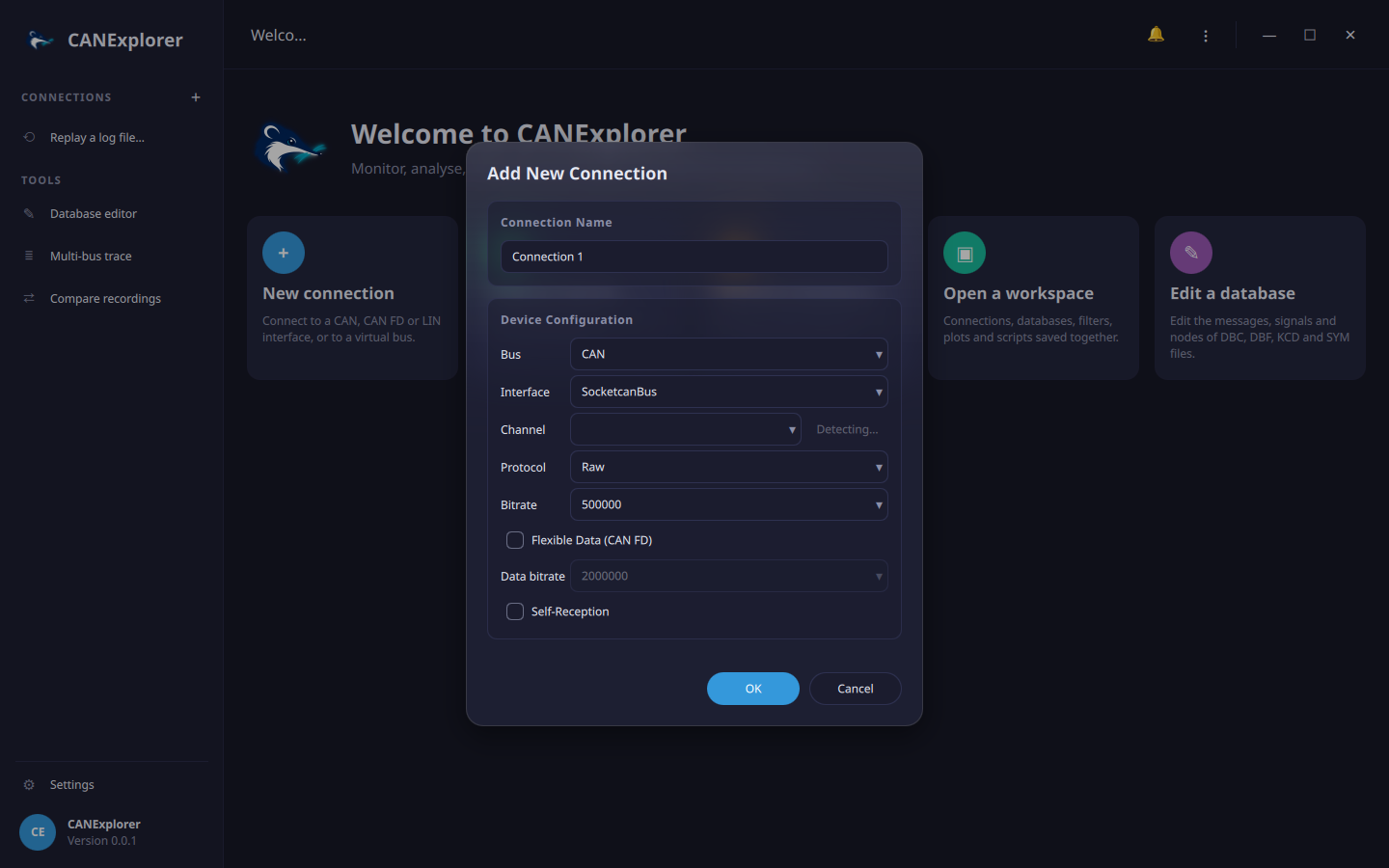
| Field | Description |
|---|---|
| Connection name | Name in the sidebar |
| Bus | CAN or LIN (LIN works through SocketCAN LIN drivers such as sllin) |
| Interface | The python-can interface, e.g. SocketcanBus, PcanBus, KvaserBus, VirtualBus, or RemoteBus for a bus shared by can-server on another computer |
| Channel | Channel of the interface, e.g. can0, PCAN_USBBUS1 or any name for VirtualBus. Detect probes all installed drivers and lists their channels; you can also type a channel |
| Protocol | Protocol decoder for the Info column: Raw, ISO-TP, UDS, J1939, CANopen (Protocol decoding) |
| Bitrate | Nominal bitrate (CAN) |
| Flexible Data (CAN FD) | Enables CAN FD and the Data bitrate |
| Baud rate | LIN baud rate (LIN) |
| Self-Reception | The interface reports the frames CANExplorer sends (receive_own_messages); without it, sent frames are added to the trace directly |
The connection is created closed; press Connect to open the bus. Disconnect closes it and stops recordings, periodic transmissions, schedules and simulations of the connection.
Note
Some drivers ignore the bitrate given here and use the configuration of the operating system, e.g. SocketCAN
interfaces are configured with ip link, see Installation.
Recent connections
⋮ → Recent Connections (and the welcome page) reopens the last ten connections with their settings.
Log file replays
⋮ → Replay Log File… (Ctrl+O) opens a recording as a connection; see Recording, replay and export.
Closing
⋮ → Close Connection (Ctrl+W) disconnects and removes the current connection.