EtherCAT (CoE)
The EtherCAT (CoE) tool in the sidebar is an EtherCAT master for configuring slaves through CANopen over EtherCAT (CoE). It finds the slaves on a network adapter, changes their EtherCAT states, reads and writes their object dictionaries with SDO transfers, and shows their PDO assignment and emergency messages. Working with CoE objects is the same as in the CANopen view; the difference is the network the objects are reached on.
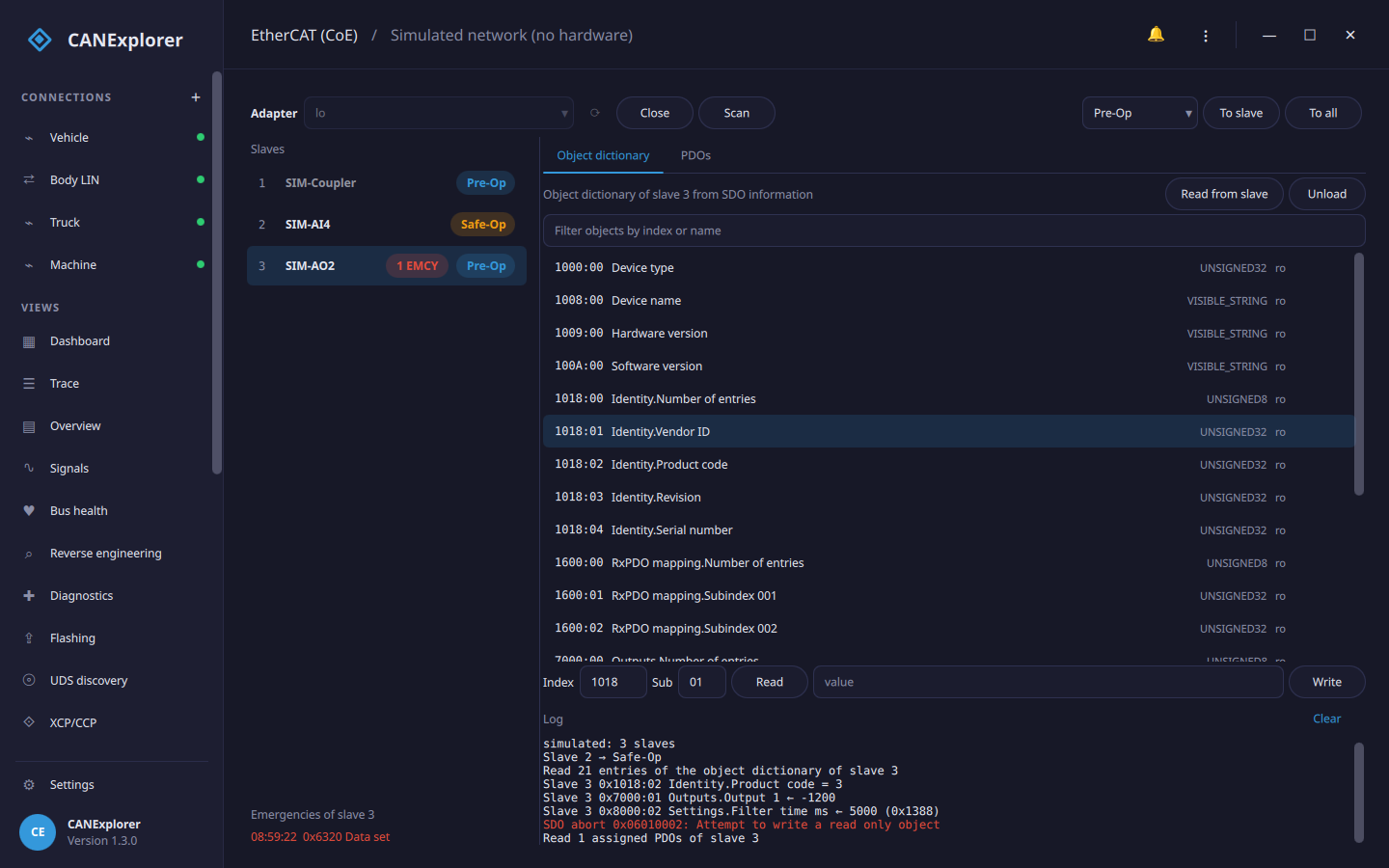
The tool configures slaves; it does not exchange cyclic process data. Slaves can be brought to Init, Pre-Op and Safe-Op, but not to Op, which needs a running process data cycle (use the PLC or your master software for that).
Requirements
Real EtherCAT networks need the optional pysoem package, which contains the
SOEM master. Run CANExplorer from source with the ethercat extra:
The installers do not include it and offer only the simulated network. EtherCAT sends raw Ethernet frames, so the master needs raw access to the network adapter:
| System | Access |
|---|---|
| Linux | Run as root, or give Python the capability: sudo setcap cap_net_raw,cap_net_admin+ep "$(readlink -f .venv/bin/python)" |
| Windows | Install Npcap (in WinPcap compatible mode) |
| macOS | Read and write access to /dev/bpf*, e.g. with Wireshark's ChmodBPF |
Use an adapter that only the EtherCAT network is connected to: the master's frames are not meant for other networks.
Licensing
SOEM is licensed under the GPL version 2 with a linking exception, and its license asks anyone distributing an EtherCAT master to obtain an EtherCAT Master License from Beckhoff Automation. EtherCAT® is a registered trademark of Beckhoff Automation GmbH.
Network and slaves
Choose an Adapter and click Open. The master finds the slaves and brings them to Pre-Op, where their mailboxes work. The list shows each slave's position in the network, name and state; hovering a slave shows its vendor ID, product code and revision, and why a state change failed (the AL status code, e.g. Invalid output configuration). Slaves without a CoE mailbox (such as couplers) are dimmed. Scan finds the slaves again, for example after you change the wiring. The states are read every second.
Choose a state and click To slave for the selected slave or To all. Safe-Op configures the process data mapping of all slaves first. A slave that does not reach the state is reported with the state it is in and the reason, e.g. Slave 2 is in Pre-Op + Error: Invalid output configuration.
Emergency messages (EMCY) are counted per slave; the list below the slaves shows those of the selected slave with the error code and its meaning. Hovering a message shows the error register and the manufacturer specific bytes.
Simulated network works without hardware and pysoem: a coupler without a mailbox, a four channel analogue input terminal and a two channel analogue output terminal. Writing more than 1000 to the output terminal's filter time (0x8000:02) makes it send an emergency.
Object dictionary
Read from slave reads the selected slave's object dictionary with the SDO information service, which most CoE slaves support. For slaves without it, EDS file… loads an EDS or DCF file instead. The dictionary belongs to the slave it was read or loaded for; Unload removes it.
The dictionary, the filter and the Read and Write fields work as in the CANopen view: with a dictionary values are shown and entered in the objects' data types, without one as hex bytes. Double-clicking an object reads it. Failed transfers show the SDO abort code and its meaning, e.g. 0x06010002: Attempt to write a read only object.
PDOs
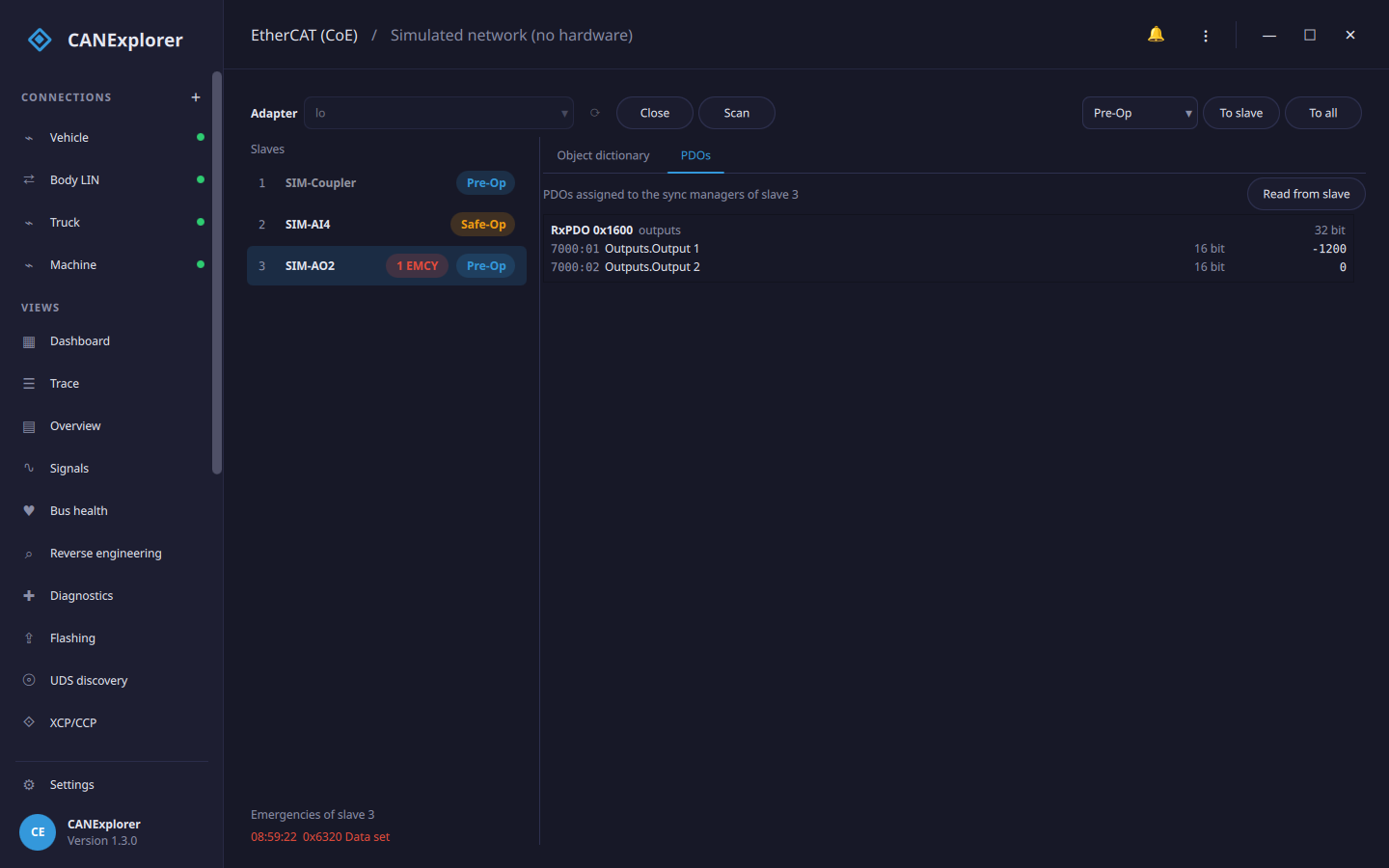
Read from slave on the PDOs tab reads which PDOs are assigned to the process data sync managers (0x1C12 for the outputs, RxPDOs, and 0x1C13 for the inputs, TxPDOs), the objects mapped to each, and the current values of these objects over SDO. Objects that cannot be read over SDO show no value.